Backwards Photo Lookup: Find People and Photo Sources
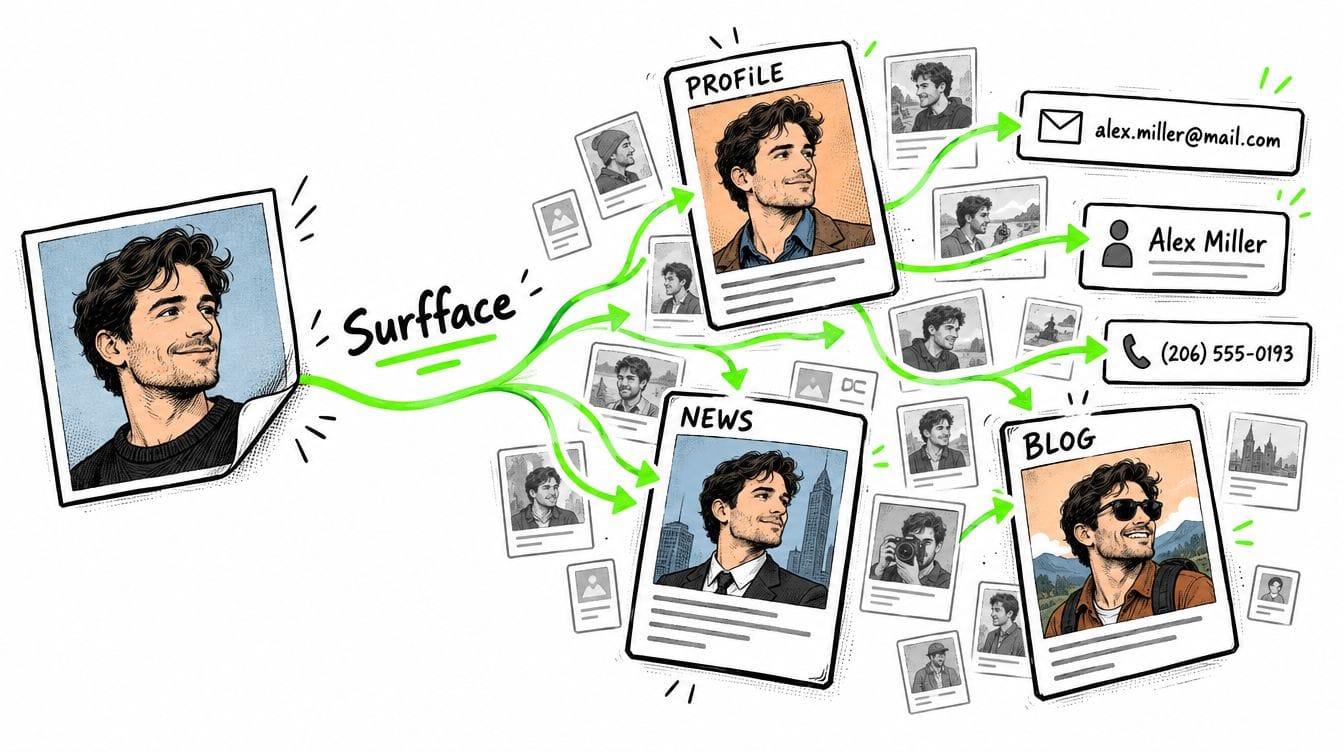
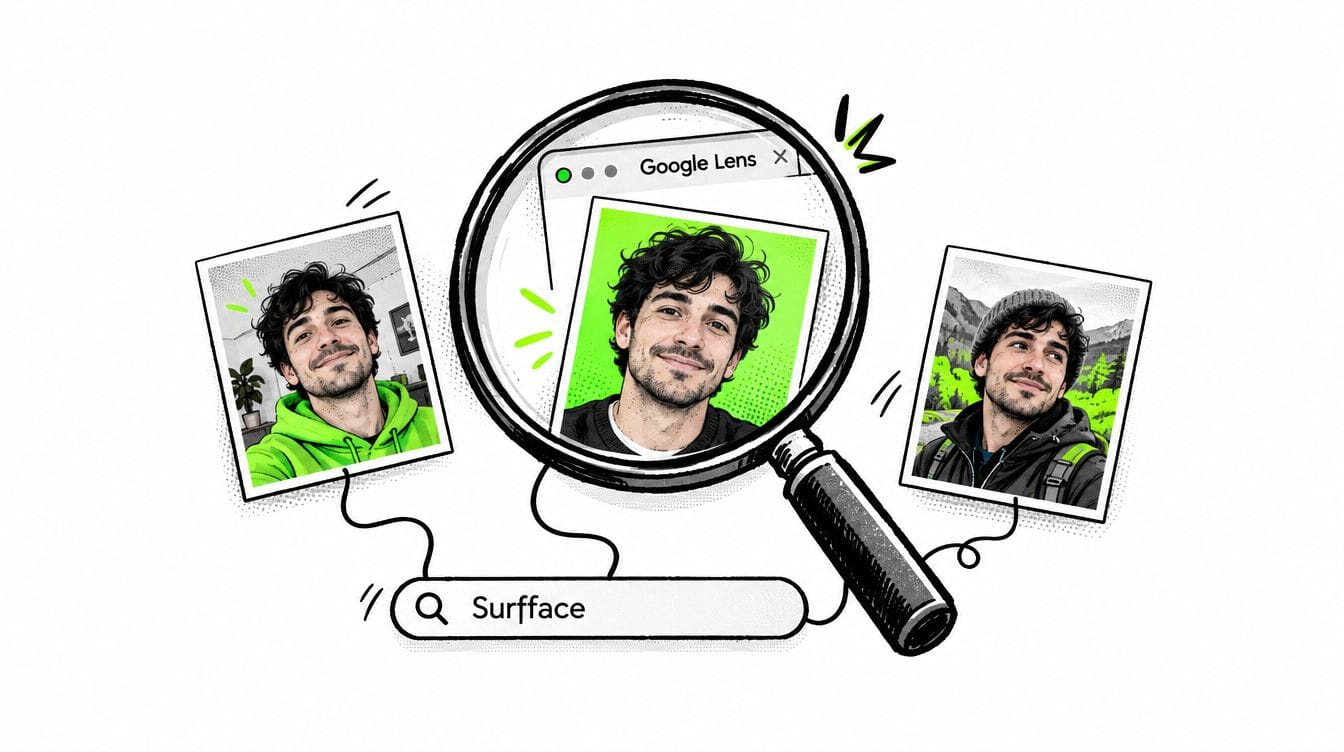
Backwards photo lookup means searching with a photo instead of words. Use reverse image search to find copies, related images and possible sources. If you want to find a person from a face photo, start with Surfface. Review possible matches at the original websites before drawing conclusions.
What is backwards photo lookup?
Backwards photo lookup, also called backwards photo search or reverse image search, starts with an uploaded image, screenshot or image URL.
It can help you investigate:
- Where a picture has appeared online.
- Whether a profile photo has been reused.
- Who may have created or published an image.
- Where the person in a photo may appear in other pictures.
The last question needs special attention. Finding the same photograph and finding the same person are different search tasks.
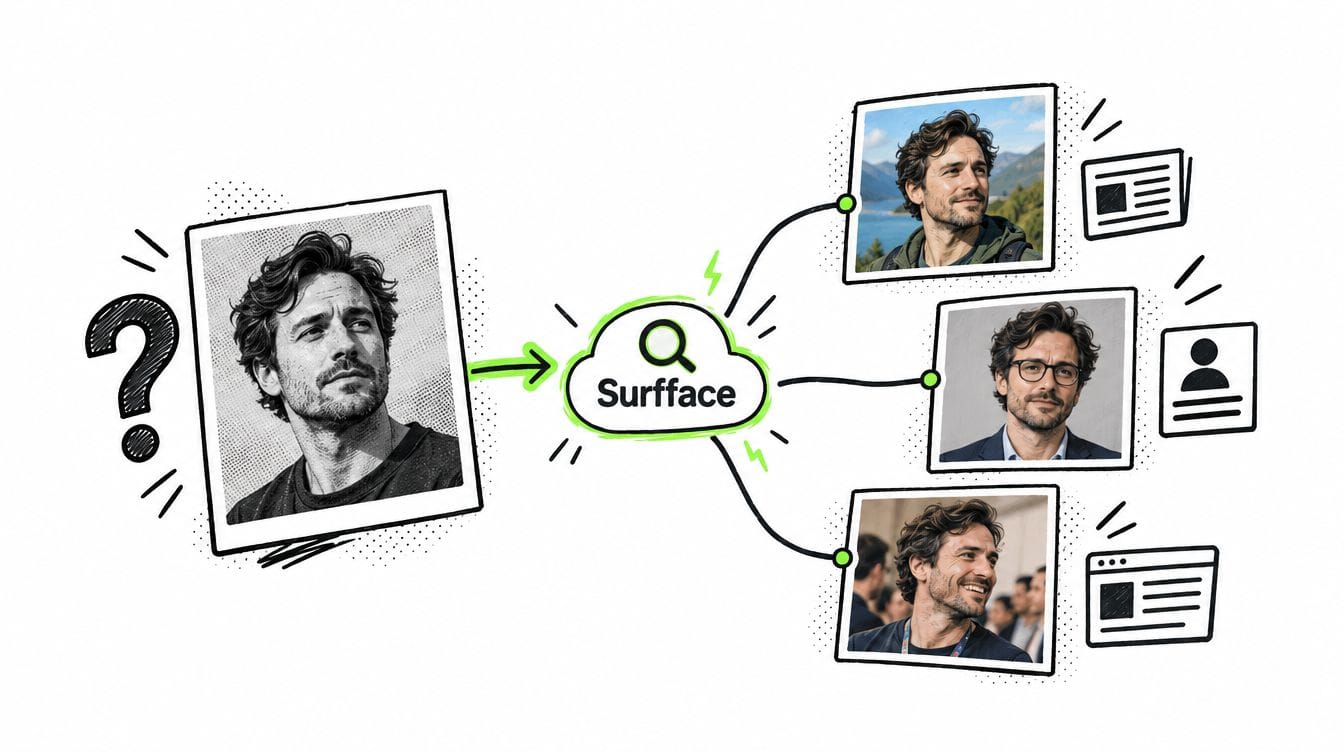
Imagine someone sends you a selfie. A duplicate search might find that exact selfie on another website. A face search might uncover a different photo of a possible match in a news article or public profile.
Choose the right reverse image search method
A reverse image result is a lead. It does not automatically establish identity, authorship or authenticity.
How to backwards search a photo to find a person
When all you have is a face photo, Surfface is an easy starting point. You can search without knowing a name or username.
Surfface works as a face search orchestrator. It combines its own index with major image search engines and third-party search tools in one place.
Possible sources include news, blogs, public social profiles and available U.S. public records such as mugshots and sex offender registries. Coverage varies.
Run a face search in four steps
- Choose a clear photo. Use an image where the adult’s face is visible. Avoid heavy filters.
- Upload it to Surfface. Start a free search where the service is available.
- Review possible matches. Compare faces carefully and look for results worth investigating.
- Unlock promising results. Accessing source links requires paid credits. Opening those sources helps you verify the person and understand the context.
Surfface prioritizes non-biometric methods and uses facial recognition only where permitted. Searches involving minors are prohibited and regional restrictions apply.
No search guarantees identification. Similarity scores guide review; they are not proof of identity.
How to do a reverse image search with Google Lens
Google Lens is useful when the whole picture contains clues, including a building, logo, product or sign.
On a computer
- Open Google.
- Click the Search by image icon.
- Upload your photo or paste its image link.
- Review matching images and websites.
- Adjust the selected area to investigate a specific detail.
Google’s official image-search instructions also explain dragging an image into the search box.
On iPhone or Android
Open the Google app, tap the Lens icon and select a saved photo. Adjust the selection around the detail you want to search.
Explore every available result tab, not just All. Images, visual matches and other categories can reveal different leads. Labels and availability vary by interface.
Google can return similar images and websites containing related pictures. However, a similar-looking face does not establish that two photos show the same person. Check the source behind any identity suggestion.
Use TinEye to trace copies of a photo
TinEye is useful for finding exact or altered copies, including resized, cropped or edited versions. Its official explanation states that it cannot find different pictures simply because they feature the same person.
Upload the image and compare matching pages. If you sort by oldest results, treat the dates as discovery clues. The first version a search engine found may be a repost.
Improve a backwards photo search that finds nothing
Before giving up, change the input and the search method:
- Use the best available file. Save the original image when possible instead of taking another screenshot.
- Try the full photo and a crop. Preserve the background for context searches. Focus on the face for people searches.
- Remove screenshot clutter. Crop away chat bubbles and app controls while keeping useful details.
- Search visible text. A username, watermark or event name may lead to the source.
- Try another photo. A different angle or clearer picture may produce different results.
- Switch methods. A duplicate-search tool may miss a person photographed elsewhere.
Avoid heavy retouching or AI face enhancement. Altering the face can introduce details that were never present.
For more ways to investigate difficult images, see our guide to advanced image search techniques.
No matches means no useful matches were found through that search. It does not prove that a photo is original, a person is absent online or a profile is genuine.
Verify people and photo sources before trusting a match
Open the actual page. A thumbnail can omit the caption that explains who is pictured.
For a possible identity match, compare names, locations, dates and other public details. Check whether the page names the pictured person or merely mentions someone else nearby.
For a possible original source, look for photographer credits, publication history and links to earlier uploads. Finding an image does not give you permission to reuse it.
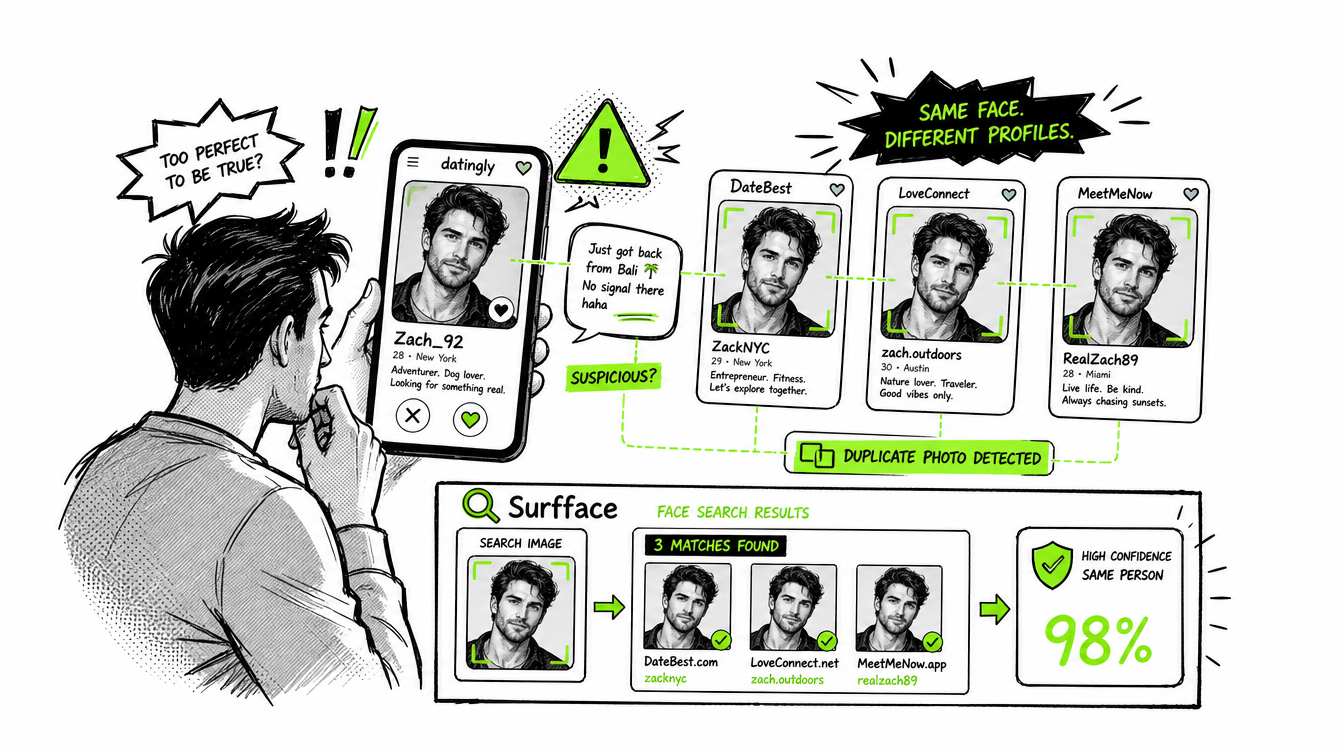
If a dating photo appears under several names, investigate the inconsistency. Photo reuse can indicate impersonation but can also come from legitimate accounts or reposts. The FTC recommends reverse image searching profile pictures when checking for romance scams.
Treat public-record matches especially carefully. Verify identity and record context with the official source. A mugshot is not a conviction.
Surfface results are investigative leads. Do not use them for employment, housing, credit or insurance screening. Do not rely on a photo lookup alone for important decisions.
FAQ about backwards photo lookup
Yes. Both mean using an image as the search query. Different tools may focus on copies of the photo, visually related images or possible face matches.
Open the Google app, tap Google Lens and select your photo. To search for a person, upload a clear adult face photo to Surfface and review possible matches.
Sometimes a matching public page includes a name. Confirm that the name belongs to the pictured person and check supporting details. Identification is never guaranteed.
Google Lens offers free image searches. Surfface lets you start free where available. If you find promising matches, unlocking source links requires paid credits.
It does not bypass private-account permissions. A photo may still have public copies elsewhere but private content is not automatically searchable.
No. A photo may be unindexed, new or too difficult to match. An empty search cannot verify the person behind an account.

Stan leads product marketing at Surfface, bringing a mix of experience in OSINT and private investigations, along with expertise in digital marketing and product management.