Google Face Search: Why It Fails and What to Try Next
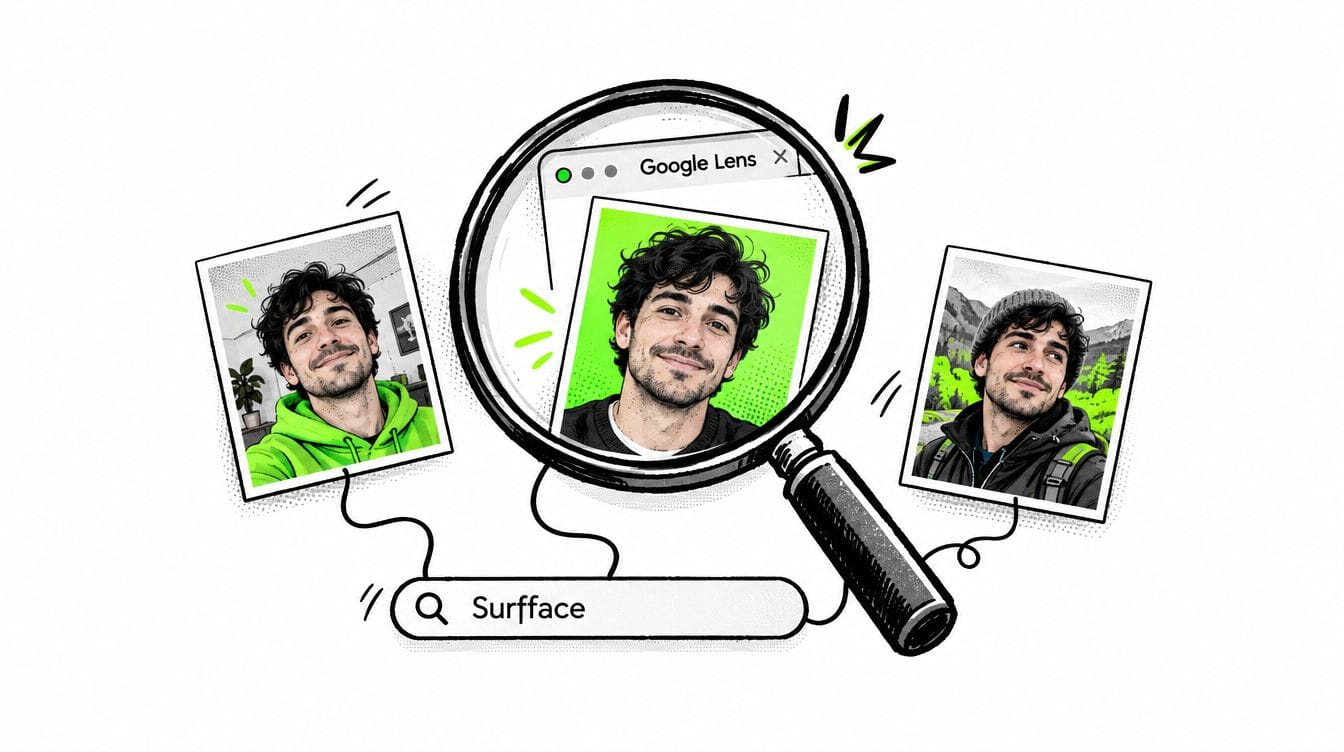
Google face search usually means uploading a photo to Google Lens. It mostly finds duplicates or near-duplicates but can also uncover different photos of the same person, especially someone with a strong public presence. Results depend on photo quality, similarity to indexed images, cropping and search context. Google’s AI summaries can sometimes offer identity clues too. For an easier starting point, Surfface combines Google Lens with its own index and other search tools.
Can Google actually search by face?
Yes. In our experience at Surfface, Google can find more than duplicates of an uploaded photo. It sometimes returns different photos of the same person.
Google indexes eligible public content across Instagram profiles and posts, YouTube video thumbnails, LinkedIn profiles and other social platforms. Those sources can provide useful leads alongside news articles, personal websites and blogs.
Someone with interviews, professional profiles and frequent public posts gives Google more opportunities to find relevant photos. Someone with little public exposure may be much harder to find.
That makes Google a handy free face search tool. However, success is uneven. Finding the same person in another photo is possible, not guaranteed.
The practical observations below come from our work with Google as one of Surfface’s search channels. They describe behavior we have encountered rather than fixed rules published by Google.
Why Google face search fails
1. The uploaded photo is too low quality or not "searchable"
A clear portrait may uncover other photos of the person. A blurry screenshot or tiny face often finds nothing useful or only duplicates of that particular image.
Those are different outcomes:
- Duplicate discovery: Finding copies or edited versions of the uploaded photo.
- Person discovery: Finding the same person in different photographs.
In our testing, Google face search is highly sensitive to photo quality. Yet even a sharp, high-resolution portrait can return nothing useful. Results often appear to depend on the overall visual similarity of the photo and face to images already in Google’s index. A clear photo is therefore not necessarily a “searchable” one.
We have also seen Google is rarely able to find the same person in entirely different photos, despite changes in appearance, pose or setting. These matches are less common in our experience but show that its capabilities can extend beyond duplicates and obvious visual similarities. This is our observation, not a confirmed explanation of Google’s underlying technology.
2. The crop is too tight or too wide
“Crop closer” is not always the answer.
In our testing, very tight face crops can run into Google’s person-search restrictions and return nothing. An uncropped image may instead produce only duplicates or focus on clothing and background objects.
The useful selection can sit somewhere between those extremes. A portrait crop with the whole head, shoulders and some surrounding context is worth testing.
There is no universal crop that works every time.
3. Your search context changes the results
Your region, cookies and account history may affect what you see. We have encountered differences between search sessions.
Google also explains why search results differ: location, language, recent searches and personalization can influence results. Its guidance concerns Search generally rather than a precise formula for face matches.
For comparison, repeat the same upload and crop in a signed-out private browsing window. This reduces some session differences but does not remove location effects or guarantee better results.
4. The person has limited searchable exposure
A person may have social accounts without having many photos Google can retrieve.
Private profiles, unindexed images and inaccessible pages leave gaps. Even a public profile does not guarantee that every post or photo is searchable.
No useful matches means the search did not find useful matches. It does not prove that the person is fake or absent from the internet.
How to search by face on Google
On a computer
- Open Google and click the Lens or “Search by image” icon.
- Upload a clear photo or paste its image URL.
- Review matching images and linked webpages.
- Open promising sources to check the pictured person’s identity.
You can also right-click a website image in Chrome and choose “Search with Google Lens.” See Google’s official image search instructions.
On a phone
- Open the Google app and tap the Lens icon.
- Choose a saved photo.
- Adjust the selection around the person.
- Review results and open relevant pages.
Interface labels vary by device. Start with the best original photo you have rather than a compressed screenshot.
Check every available results tab
Do not stop at the All tab. In our experience, useful matches sometimes appear in other tabs even when All shows nothing relevant.
Check Images, Videos and every other available results tab. Each can surface different leads, so review them before deciding that Google found nothing. The available tabs vary by interface and query.
Google reverse image search: test crops systematically
Keep three versions of the same photo:
Search each version separately. If a close crop finds nothing, widen it. If the full image returns products or scenery, narrow the selection.
Change one variable at a time. Otherwise, you cannot tell whether a different photo, crop or session produced the improvement.
Visible usernames, watermarks and event names can also help. Add relevant text where Lens allows it or search those clues separately. Our advanced image search guide covers additional techniques.
Google face recognition search: check the AI summary too
Do not stop at the image grid. Sometimes Google’s AI summary provides a useful identity lead even when the Lens matches are unhelpful.
In our experience, it may suggest a name or biographical information connected to the uploaded photo. This route is improving and can occasionally be very useful.
However, it is not stable. Sometimes it works, sometimes no useful summary appears and sometimes it identifies the wrong person.
Google confirms that AI Overviews can appear with image searches and warns that AI responses can contain mistakes.
If a summary suggests a name:
- Open its supporting links.
- Check whether those pages actually show the same person.
- Compare multiple photos and relevant biographical details.
- Reject claims that the linked sources do not support.
Treat the summary as a new search lead. A confident answer is not confirmation and neither useful results nor errors establish how Google’s underlying face matching works.
Start with Surfface for broader face discovery
Google is worth trying. Getting useful results can still involve repeated uploads, crop adjustments and several separate searches.
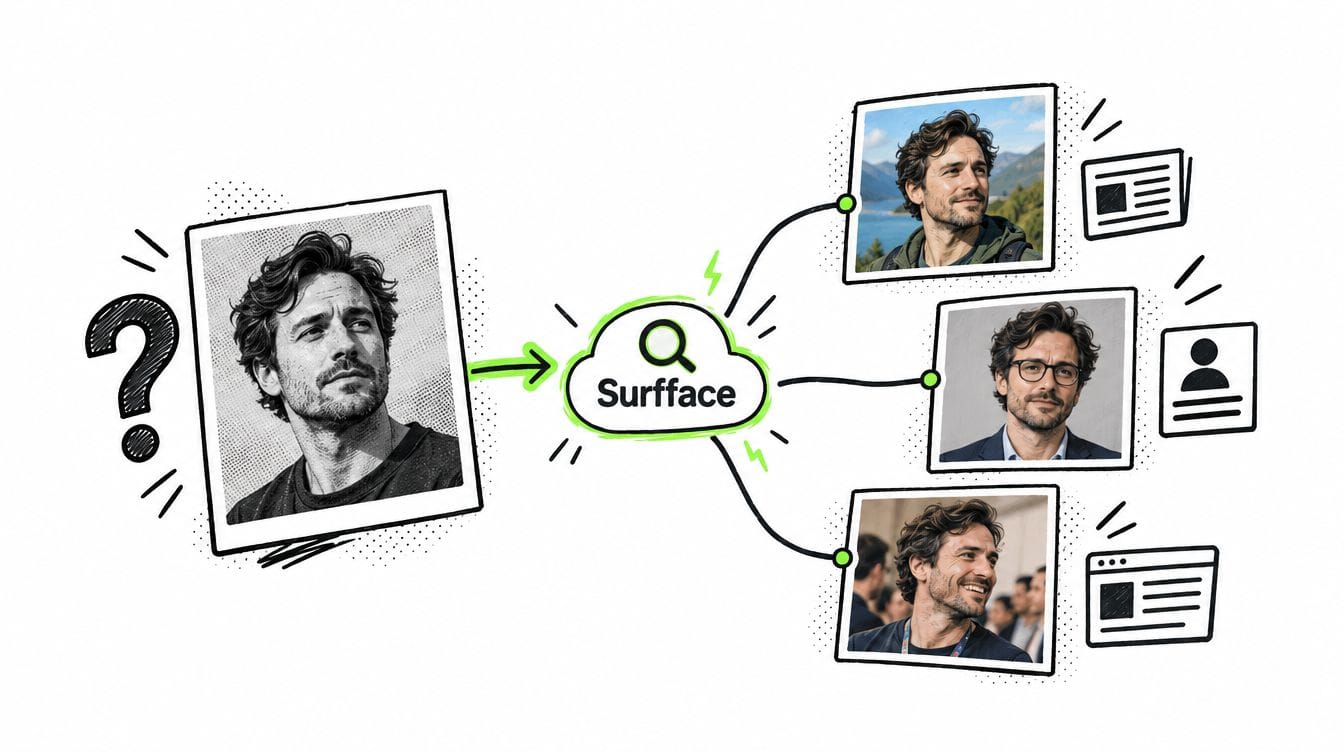
Surfface brings those search paths together. It is a face search orchestrator that combines Google Lens with its own index and other face and image search tools.
Surfface uses cropping and other image preparation techniques to make better use of its search channels. One engine may find a copied photo while another discovers a different public appearance.
Searches can uncover possible matches across news, blogs, public social profiles and available U.S. public records including mugshots and sex offender registries.
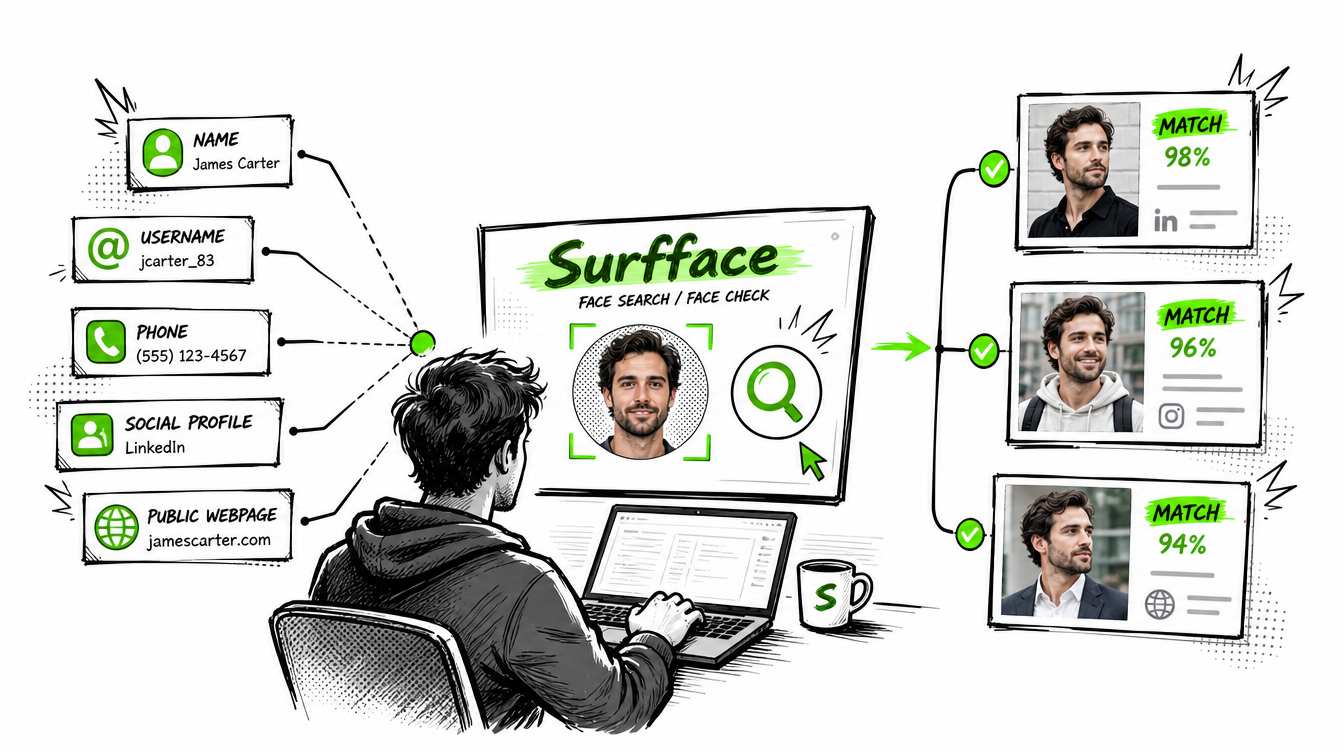
You can start with just a photo. No name is required.
Start free and review the preview. If you see promising matches, unlocking the search requires paid credits. Unlocking gives you the original source links so you can check context and verify the findings. No search guarantees identification.
Surfface uses public sources with regional restrictions and safeguards. Searches involving minors are prohibited.
Verify the person and the context
A matching face does not establish who controls an account using that photo. A mugshot does not establish a conviction. Compare multiple photos, names, dates and source context before accepting a conclusion. No results do not establish safety. Do not rely on search findings as the sole basis for important decisions.
FAQ
Yes. Google Lens lets you search uploaded photos without a search fee. Finding a person depends on image quality, searchable public exposure and other factors.
Yes. In Surfface’s experience, Google sometimes finds different photos of the same person, especially someone with significant public exposure. It is not limited to finding duplicate images.
In our testing, very tight face crops sometimes encounter person-search restrictions or return nothing useful. Try a wider portrait crop and the original image. No single crop works reliably for every photo.
Sometimes it provides a name or biographical lead. In our experience, results are inconsistent and may identify the wrong person. Verify every suggestion against supporting sources and additional photos.
No. Google Photos groups faces within your photo library. Google Lens searches online visual content. Private face labels in Photos do not identify strangers across the web.

Stan leads product marketing at Surfface, bringing a mix of experience in OSINT and private investigations, along with expertise in digital marketing and product management.